01
Table Lens
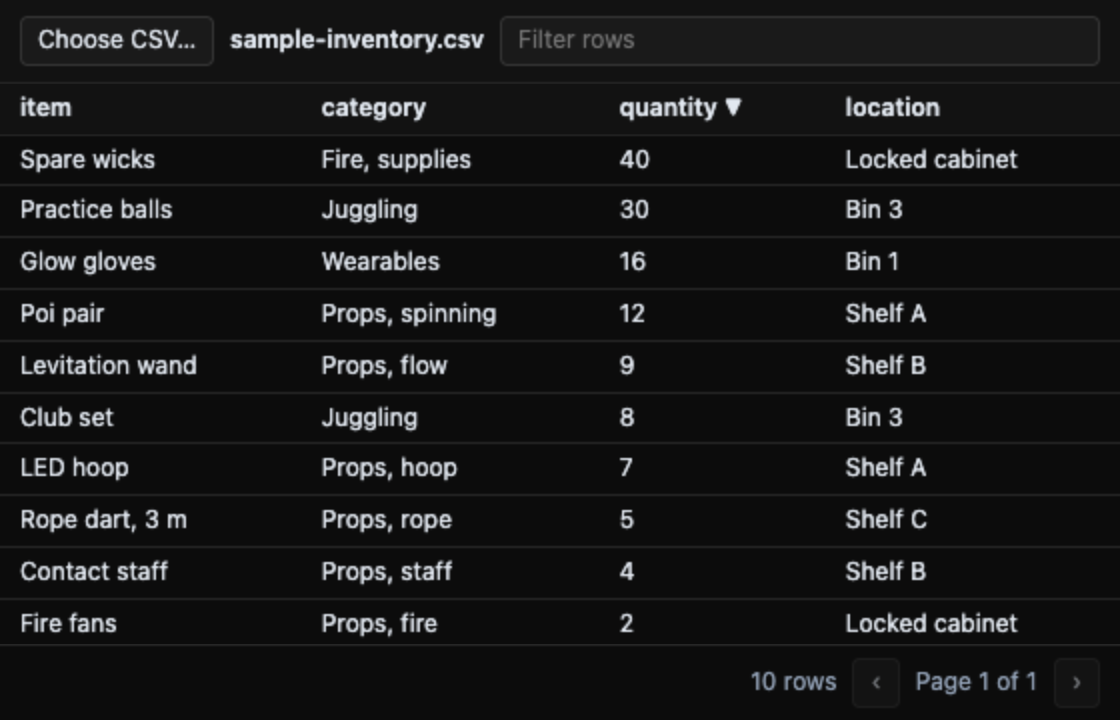
Sort, filter and page through any CSV in your project. Each pane keeps its own file and view.
Maestro for developers
Maestro is built around your agents, your files and the way you work. Two kinds of extension let you shape it: custom panels add views beside your chats and code, and custom tools add functions your agents can call. Each is one file, written by you or your agent, running in a sandbox that sees only what you hand it.
01 · Available in beta
Custom panels let you add your own views to Maestro: a table for a CSV file, a viewer for your logs, a chart of your results. A panel is one HTML file. Install it, open it beside your chats and code, and it works with the files you choose. Custom panels are in beta.
Or have your agent build one. Tell it:
Read https://optimisticagency.com/docs/panels.md, then make me a Maestro panel that …
All three are in Maestro under + Panel → Manage panels…, and each is one file you can read and copy.
01
Sort, filter and page through any CSV in your project. Each pane keeps its own file and view.
02
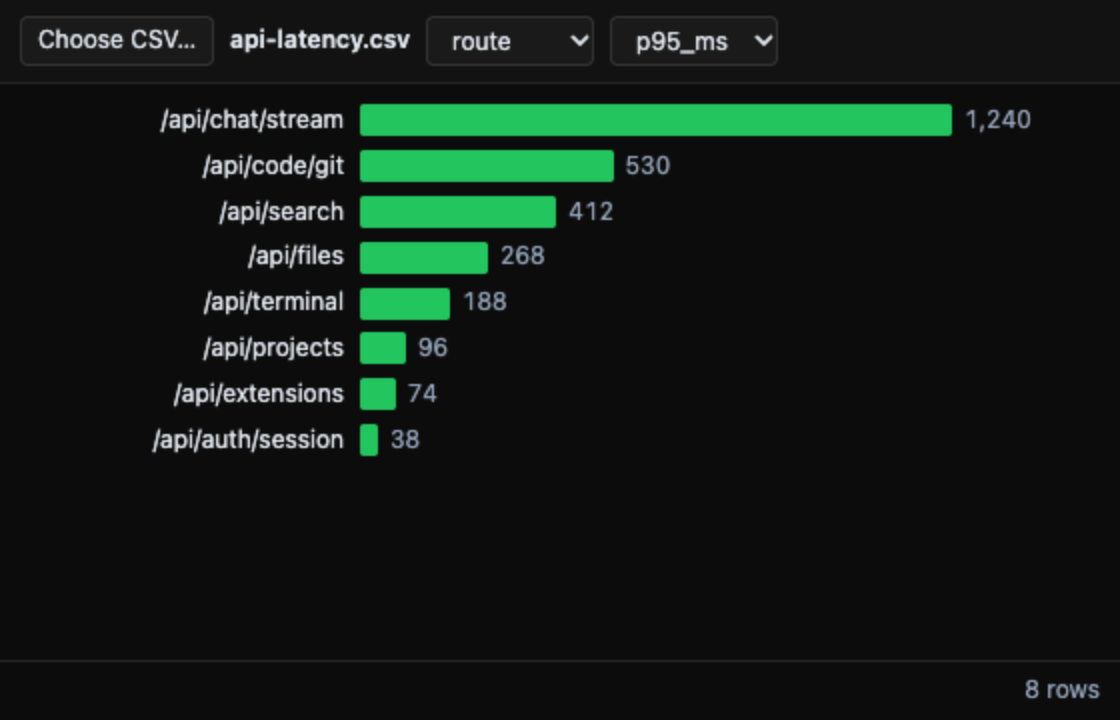
Turn a column into bars, largest first: benchmark results, file sizes, latencies.
03
A tool that needs only its input: convert takes a value, from and to units, and returns the result. Agents call it with no pane open.
01
Its manifest, a small JSON block, sits inside the file. Write it by hand, ask an agent to write it, or build it with React or any web framework and bundle it into one file.
02
It then appears in + Panel next to Chat, Editor, Terminal and the other built-in panels, in every project on your account, on the web and in the Maestro app.
03
Open the same panel twice on two different files. Each pane remembers its file and its view in split panes, in floating windows and after a reload.
04
You can choose a file in Maestro’s file finder, or an agent can bind an authorized file to the pane. The panel receives that file's name and contents, never its path or anything else in your project.
05
Panels run in a sandbox with no network, no access to your Maestro session, and no way to open pages or windows.
Write the file yourself or ask an agent in a Maestro chat, on the web or in the Maestro app on your phone.
Web
panels/my-panel.html. Give it your own id and name, and write the page.version and install it again.Phone
Web
Phone
02 · Available in beta
Custom tools let an agent work with the views and functions you add to Maestro. For example, ask it to open a project CSV in Table Lens, filter to Shelf B and report the matching count. Maestro supplies the file to the pane, the panel applies its filter, and the result appears in your conversation. Tools live in the same HTML files as custom panels.
01
Give it a name, description and input schema. Agents discover installed tools, read their schemas and call them through Maestro's shared extension tools.
02
One HTML file contains the manifest and handlers. It works on its input and, in an open pane, that pane's bound file and view state. Network access stays blocked.
03
An agent can open a panel, bind an authorized project file, apply a filter or change a chart, and report the result without a file picker.
04
API agents, Maestro CLI, Claude Code and Codex use the same discovery and call tools, and an agent you equip in Agent Studio calls a tool by name. Keep a Maestro window open (desktop, phone-width web or Maestro mobile) while tools run.
05
Manage panels shows declared tools before installation. Calls and results appear in the conversation. Turn an extension off or remove it there at any time.
Write the file yourself or ask an agent in a Maestro chat, on the web or in the Maestro app on your phone.
Web
panels/my-panel.html. Give it your own id and name, and write the page.version and install it again.Phone
Web
Phone
Then
Soon you'll share panels and tools in a store for other people to install, with updates and removal handled for them, and later, paid ones. Publishing a panel in Maestro today only makes it the version to go back to; it does not list it anywhere. Until the store opens, share a panel by sending someone the file; they install it from their project.
Tell us what you'd build: hello@optimisticagency.com